Set up docs MCP
ClickStack includes role-based access control (RBAC) so you can define custom roles with fine-grained permissions over dashboards, saved searches, sources, alerts, webhooks, and notebooks. Permissions work at two levels: resource-level access (no access, read, or manage per resource type) and optional fine-grained rules that restrict access to individual resources by name, tag, or ID. ClickStack ships with three built-in roles, and you can create custom roles to match your team’s needs.
User access prerequisites
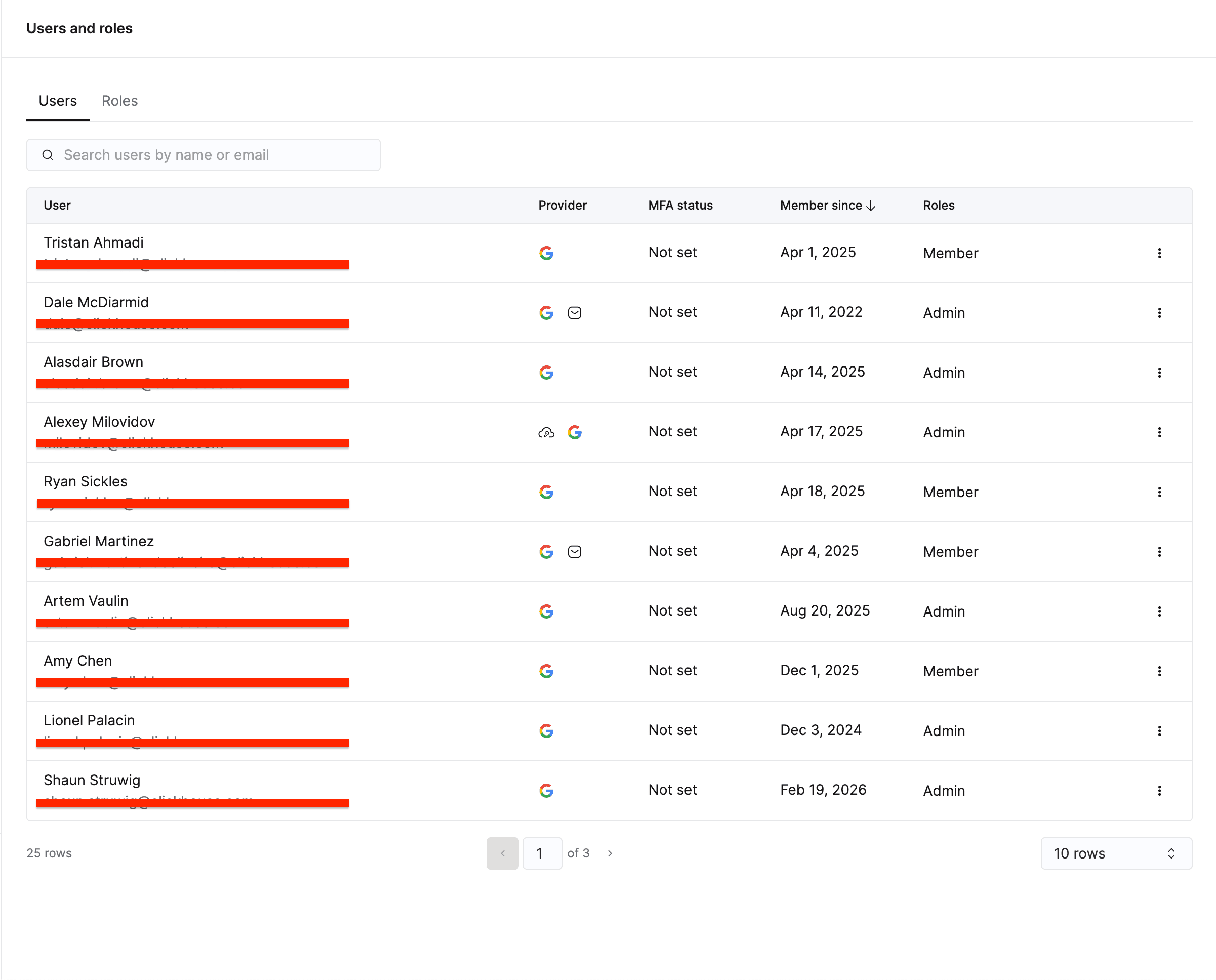
ClickStack authenticates through ClickHouse Cloud. Before you can assign ClickStack roles, each user must:
- Be invited to your ClickHouse Cloud organization. An organization admin invites users from the Cloud console. See Manage cloud users for details.
- Have SQL Console access on the service. Navigate to your service’s Settings → SQL Console Access and set the appropriate permission level:
| Cloud SQL Console access | ClickStack access |
|---|---|
| SQL Console Admin (Full Access) | Full access to ClickStack. Required for enabling alerts. |
| SQL Console Read Only (Read Only) | Can view observability data and create dashboards. |
| No access | Can’t access ClickStack. |
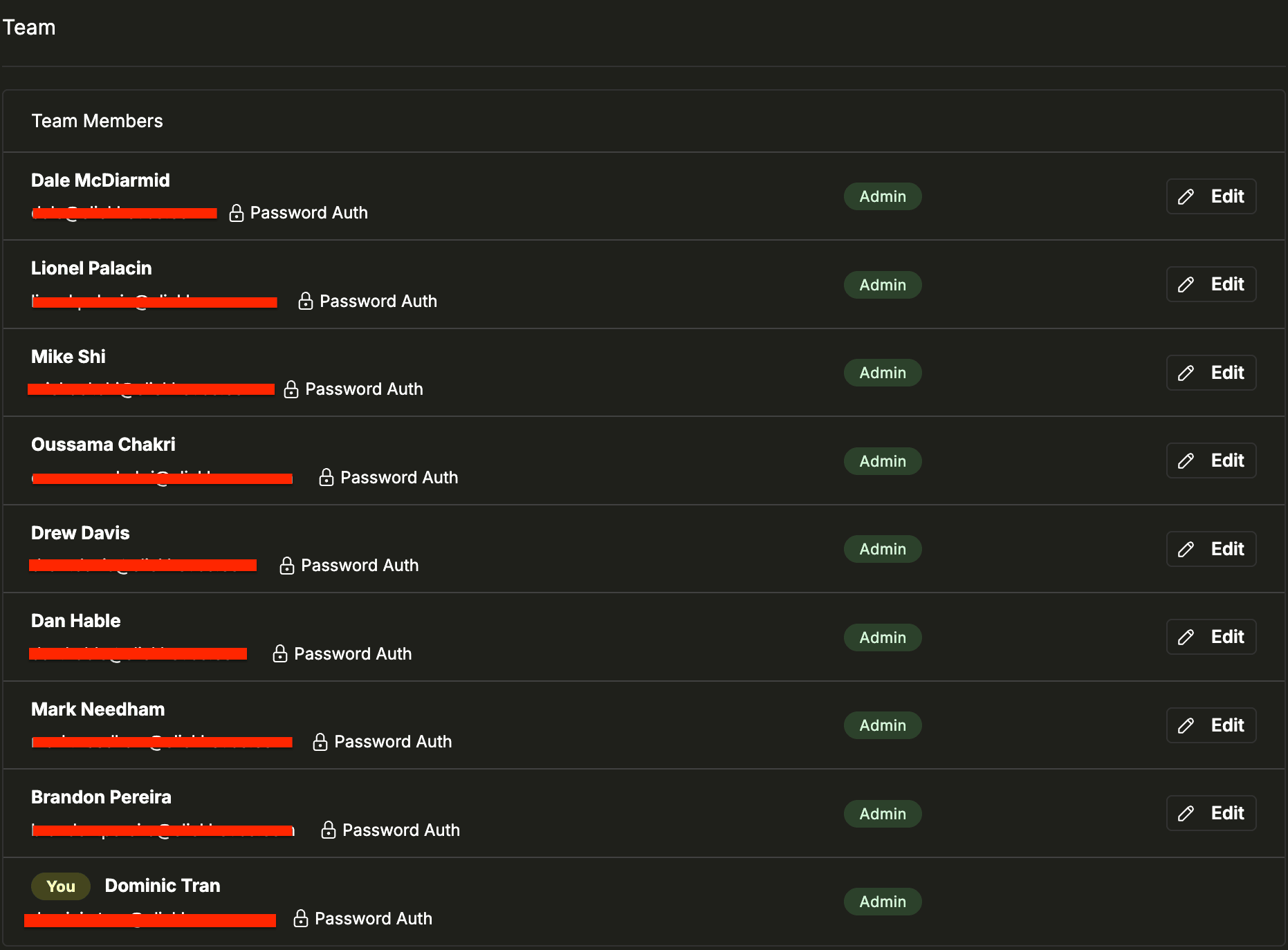
Once a user has Cloud access, they appear in the ClickStack Team Settings page where you can assign a ClickStack role.
Built-in roles
ClickStack includes three system roles. You can’t edit or delete these. The Admin role is assigned to the team creator by default.
| Permission | Admin | Member | ReadOnly |
|---|---|---|---|
| Read all resources | ✓ | ✓ | ✓ |
| Manage dashboards | ✓ | ✓ | |
| Manage saved searches | ✓ | ✓ | |
| Manage sources | ✓ | ✓ | |
| Manage alerts | ✓ | ✓ | |
| Manage webhooks | ✓ | ✓ | |
| Manage notebooks | ✓ | ✓ | |
| Update team settings | ✓ | ✓ | |
| Create/delete teams | ✓ | ||
| Manage users and invitations | ✓ |
Assigning roles to team members
The Team Settings page lists all team members with their current role. To change a role, click Edit next to the user’s name and select a new role. Each user has exactly one role.
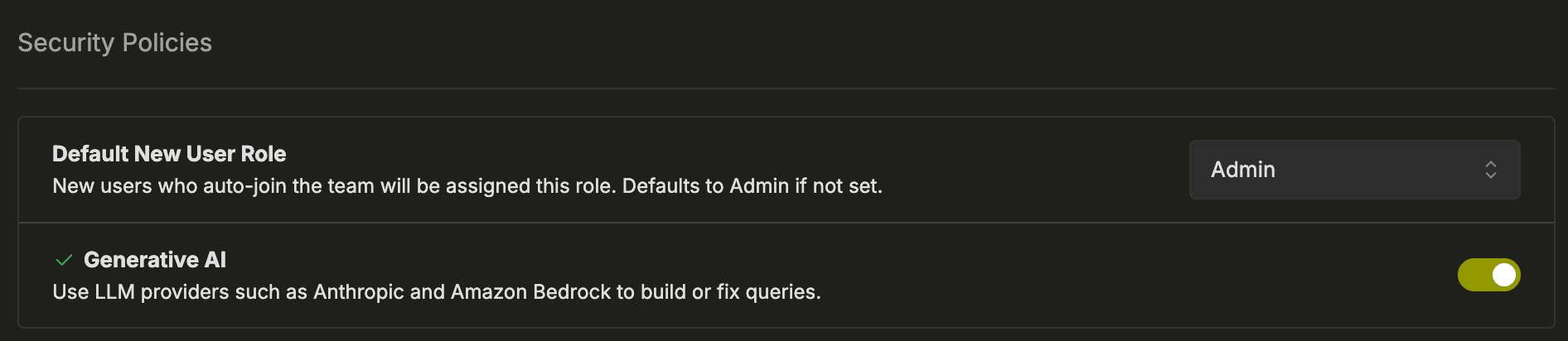
Default new user role
You can set a default role for new users under Security policies. New users who auto-join the team are automatically assigned this role.
Creating a custom role
Navigate to Team Settings
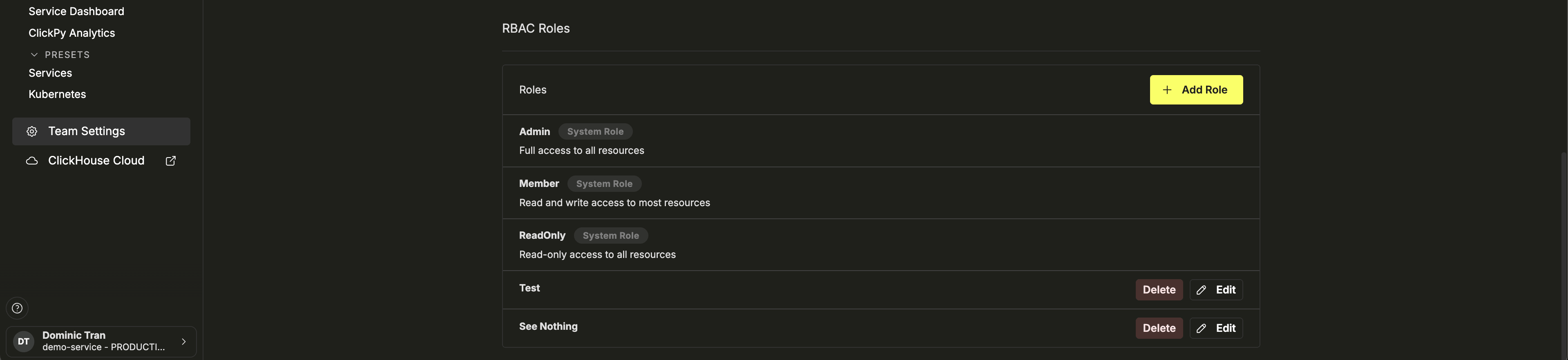
Open Team Settings and scroll to RBAC Roles.
Add a new role
Click + Add Role. Enter a Role Name and optionally add a Description.
Configure permissions and save
Set permissions for the role, then click Create Role.
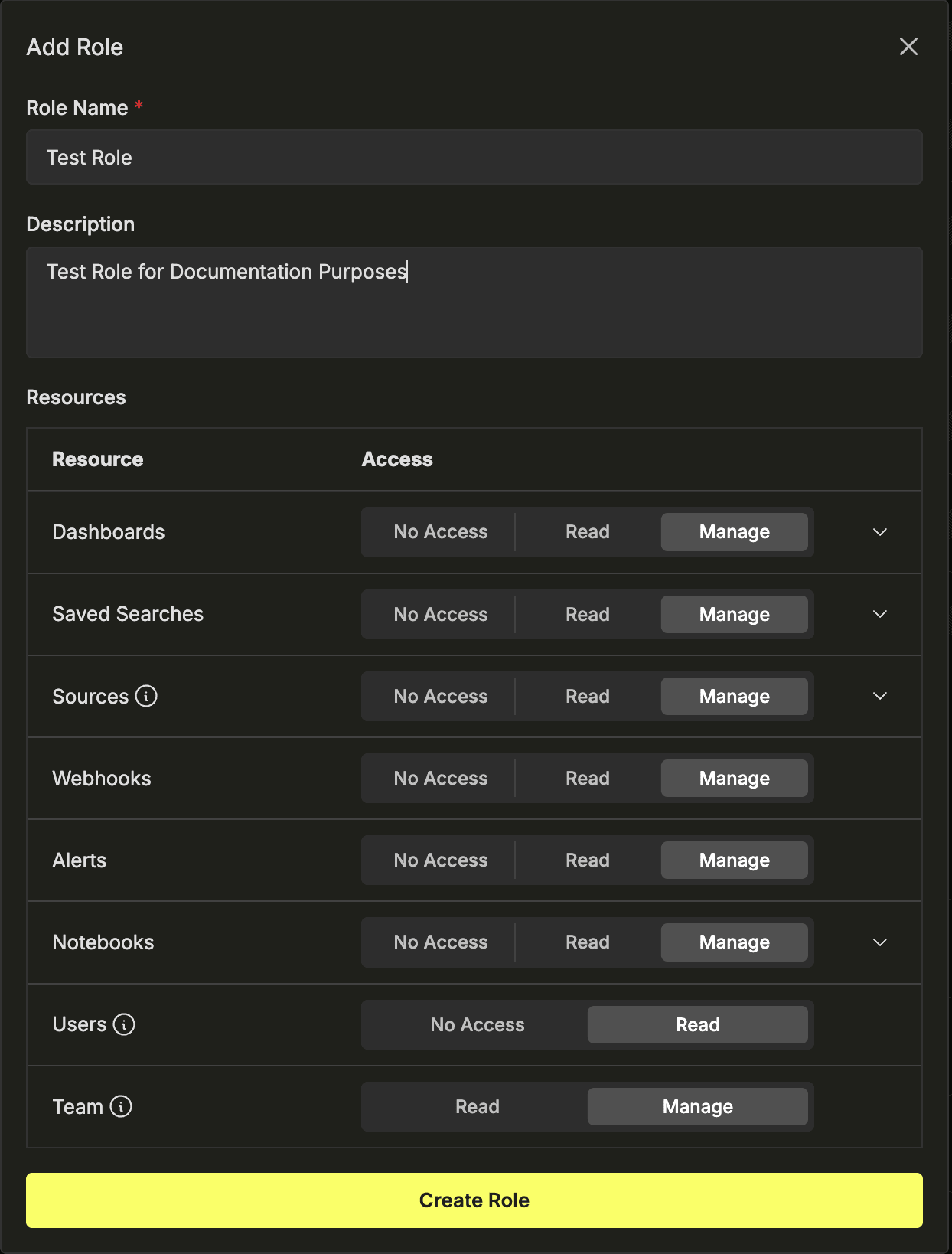
Custom roles appear alongside system roles in the RBAC Roles section, with Edit and Delete controls.
Role permissions
Resource permissions
Each role grants an access level per resource type. The three levels are:
| Access level | What it allows |
|---|---|
| No Access | The resource type is hidden from the role entirely. |
| Read | View the resource and its configuration, but not create, edit, or delete it. |
| Manage | Full control — create, edit, and delete resources of that type. |
The resource types you can control are:
- Dashboards — saved dashboard layouts and charts.
- Saved searches — persisted log/trace/event queries.
- Sources — ingestion source configurations.
- Alerts — alert rules and their notification settings.
- Webhooks — outbound notification destinations (such as Slack, PagerDuty, and generic HTTP endpoints) that alerts deliver to. This doesn’t refer to the ClickStack API.
- Notebooks — collaborative investigation notebooks.
Administrative permissions
In addition to resource permissions, each role includes two administrative settings:
- Users (No Access · Limited Access) — controls whether the role can view team members and their roles. Only Admins can invite, remove, or update users.
- Team (Read · Manage) — controls whether the role can view or modify team-level settings such as security policies and RBAC configuration.
Fine-grained access rules
Dashboards, Saved Searches, Sources, and Notebooks support fine-grained controls that restrict access to individual resources within a category. Use these when you need to limit a role to specific resources rather than granting blanket access to the entire resource type.
Default access vs. fine-grained controls
Each resource type has an Access Control Mode:
- Default Access — applies a single access level (No Access, Read, or Manage) to all resources of that type.
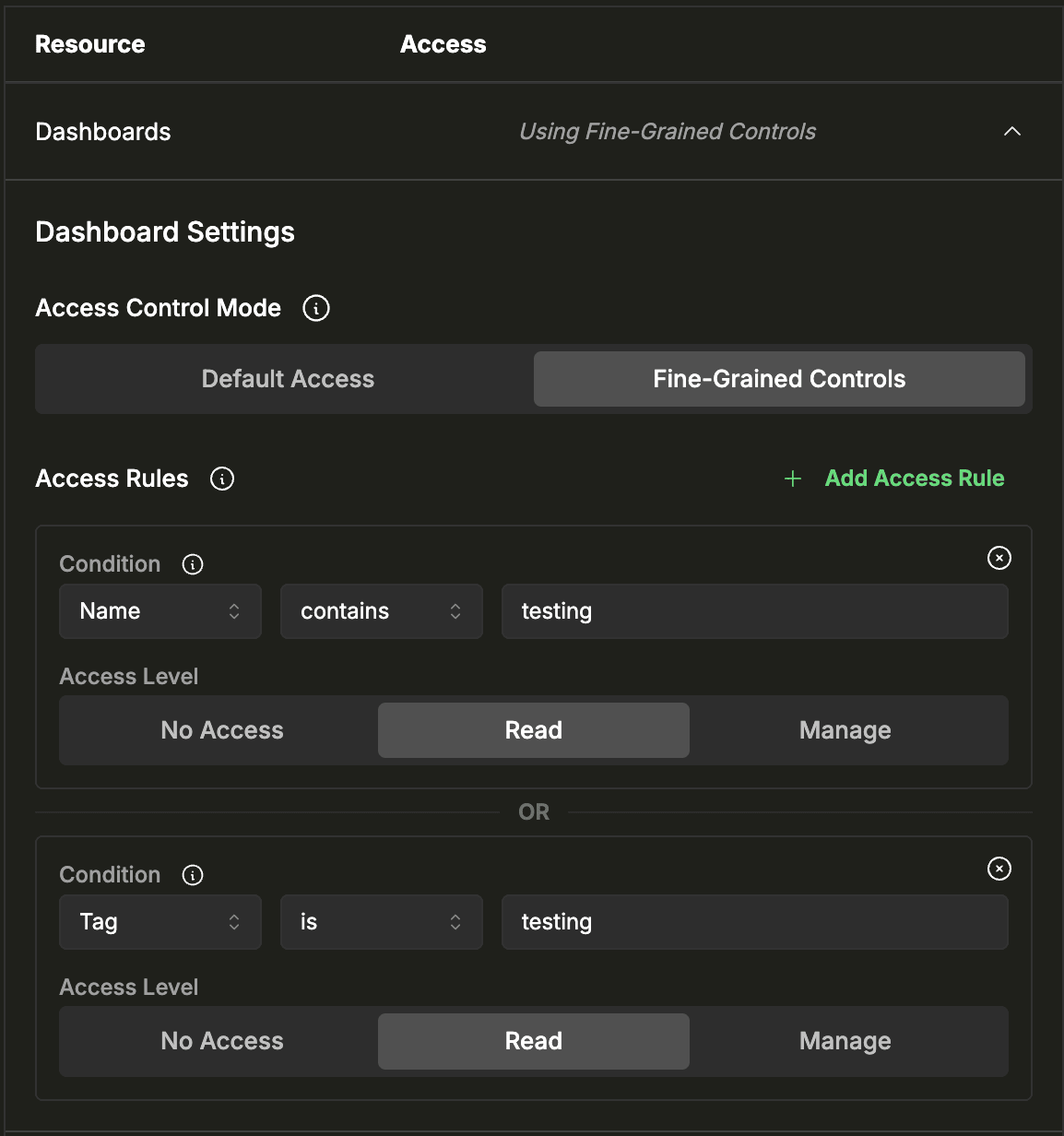
- Fine-Grained Controls — lets you define access rules that match specific resources by condition. Resources that don’t match any rule default to no access.
To switch modes, click the chevron to expand a resource type in the role editor, then toggle the Access Control Mode.
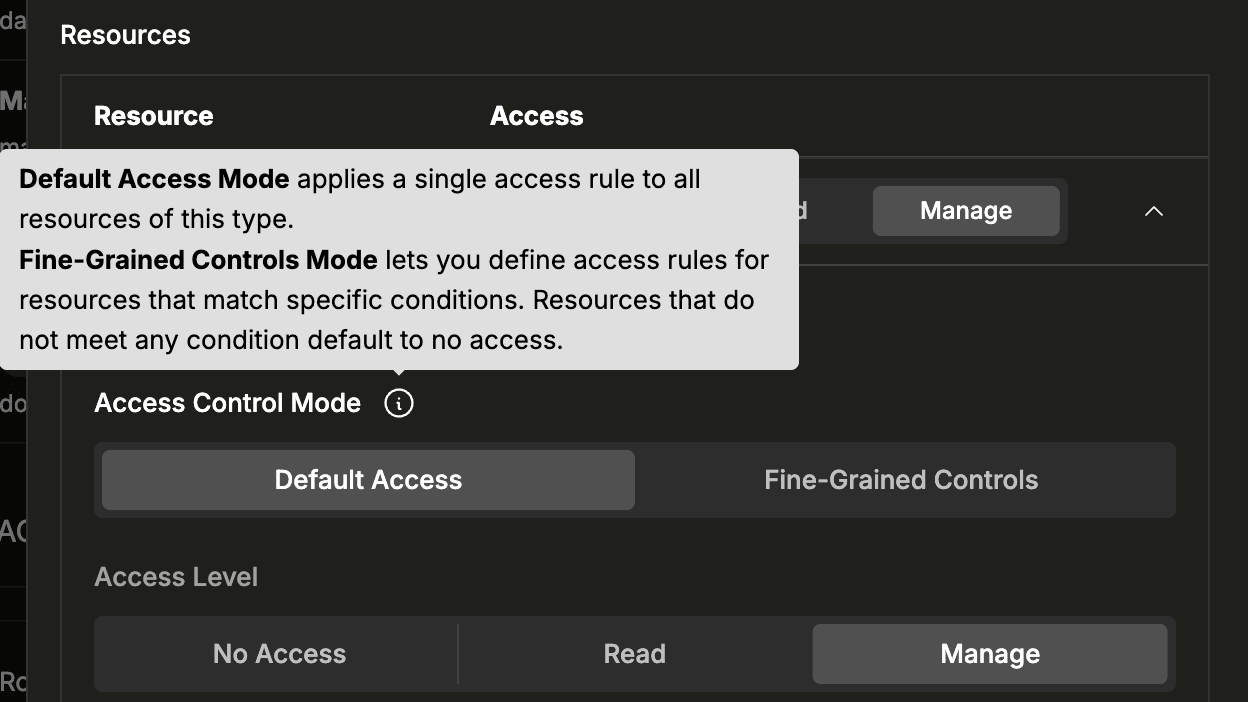
Configuring access rules
Each access rule consists of a condition and an access level. Conditions match resources by their properties:
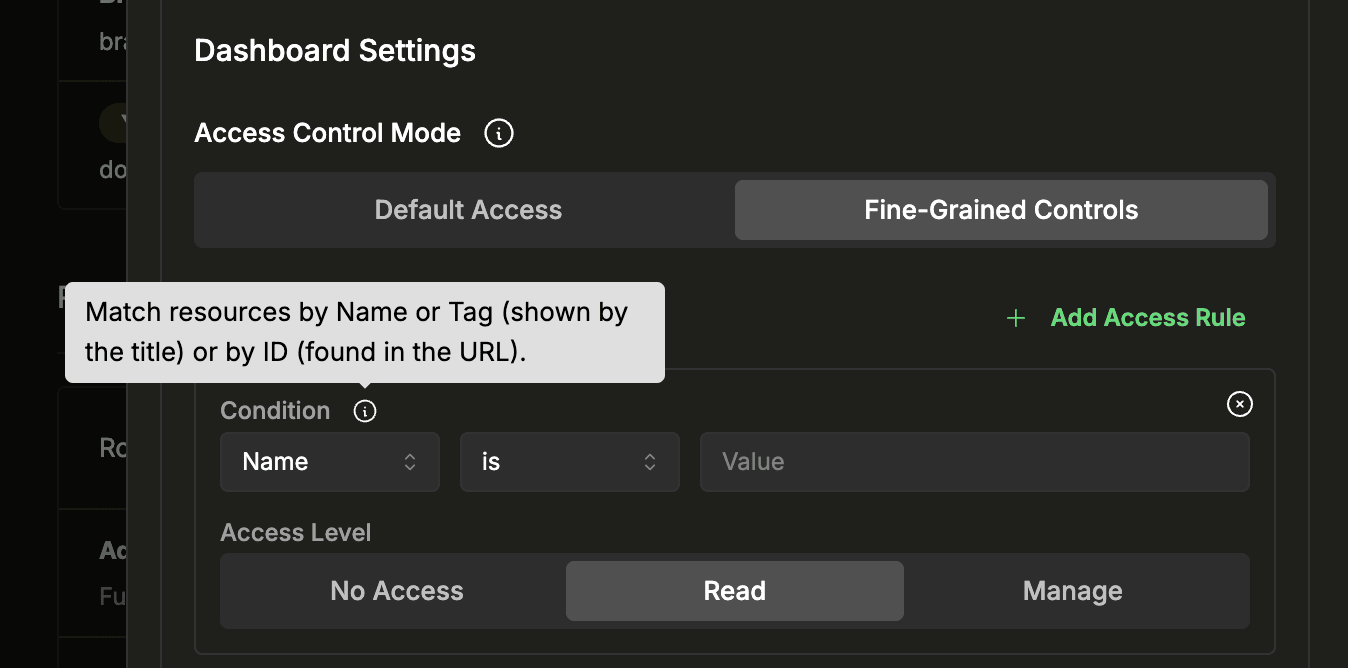
| Condition field | Operators | What it matches | Example |
|---|---|---|---|
| Name | is, contains |
The display name of the resource — for example, the dashboard title. | Name contains production — matches any dashboard with “production” in its title. |
| Tag | is, contains |
Tags assigned to the resource via the tag panel in the top-right corner of the resource view. Available for Dashboards, Saved Searches, and Notebooks only. | Tag is critical — matches resources tagged “critical.” |
| ID | is, contains |
The resource identifier, found in the URL bar when you open the resource. | ID is abc123 — matches a single specific resource. |
The following screenshot shows both the dashboard ID highlighted in the URL bar and a “TESTING” tag visible in the tag panel (top-right).
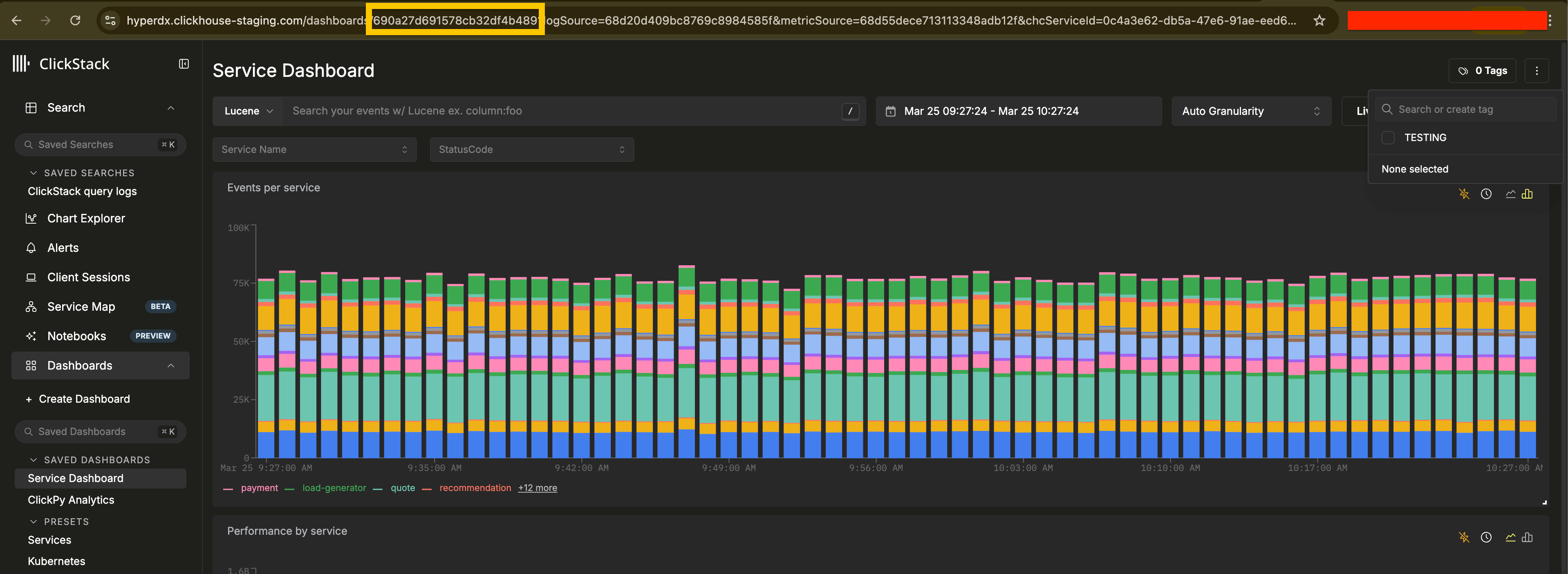
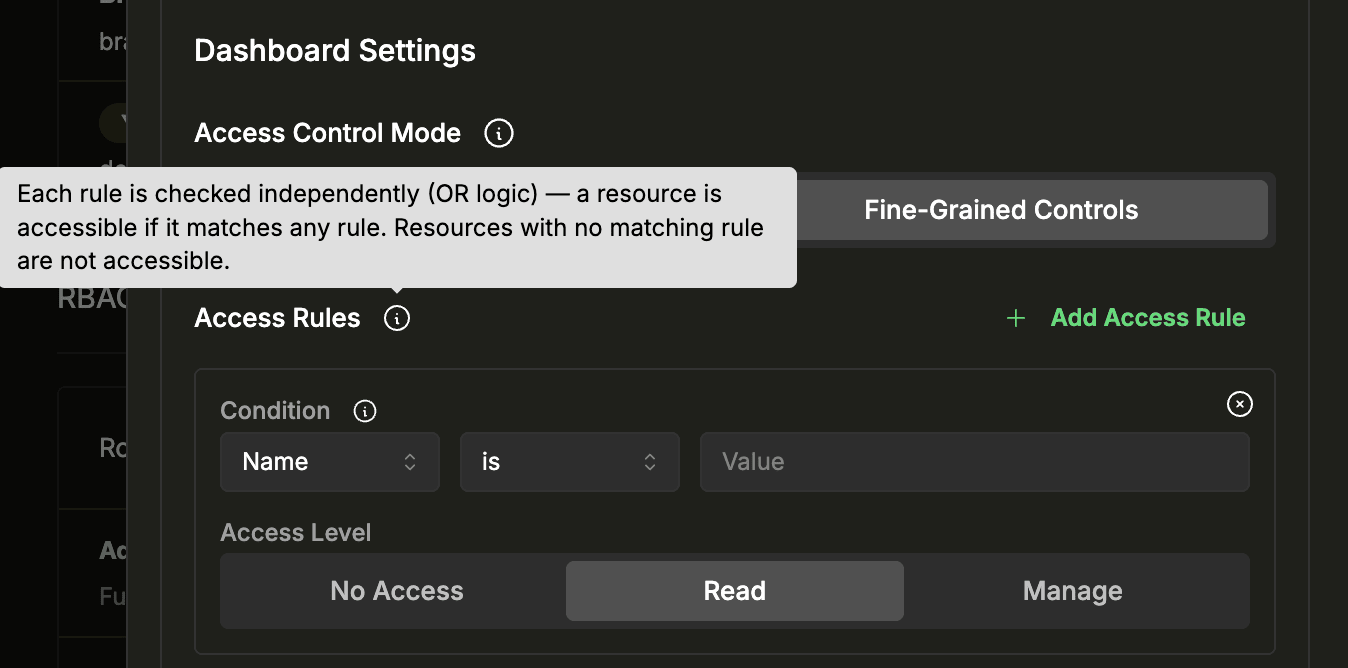
You can add multiple rules per resource type. Each rule is checked independently using OR logic — a resource is accessible if it matches any rule. Resources that don’t match any rule aren’t accessible.
Example: To give a role read-only access to testing dashboards, expand Dashboards, switch to Fine-Grained Controls, and add two rules:
- Name
containstestingwith access level Read - Tag
istestingwith access level Read
A dashboard that matches either rule is accessible.
Security policies
The Security Policies section in Team Settings provides additional controls.
Default New User Role sets the role automatically assigned to new users who join the team.
Generative AI lets you enable or disable LLM-powered features (such as natural language query generation) powered by Anthropic or Amazon Bedrock. When disabled, no data is sent to AI providers.