

 Set up docs MCP
BladePipe is a real-time end-to-end data integration tool with sub-second latency, boosting seamless data flow across platforms.
ClickHouse is one of BladePipe’s pre-built connectors, allowing users to integrate data from various sources into ClickHouse automatically. This page will show how to load data into ClickHouse in real time step by step.
Supported sources
Currently BladePipe supports for data integration to ClickHouse from the following sources:
- MySQL/MariaDB/AuroraMySQL
- Oracle
- PostgreSQL/AuroraPostgreSQL
- MongoDB
- Kafka
- PolarDB-MySQL
- OceanBase
- TiDB
More sources are to be supported.
Download and run BladePipe
-
Log in to BladePipe Cloud.
-
Follow the instructions in Install Worker (Docker) or Install Worker (Binary) to download and install a BladePipe Worker.
Add ClickHouse as a target
-
In BladePipe, click “DataSource” > “Add DataSource”.
-
Select
ClickHouse, and fill out the settings by providing your ClickHouse host and port, username and password, and click “Test Connection”.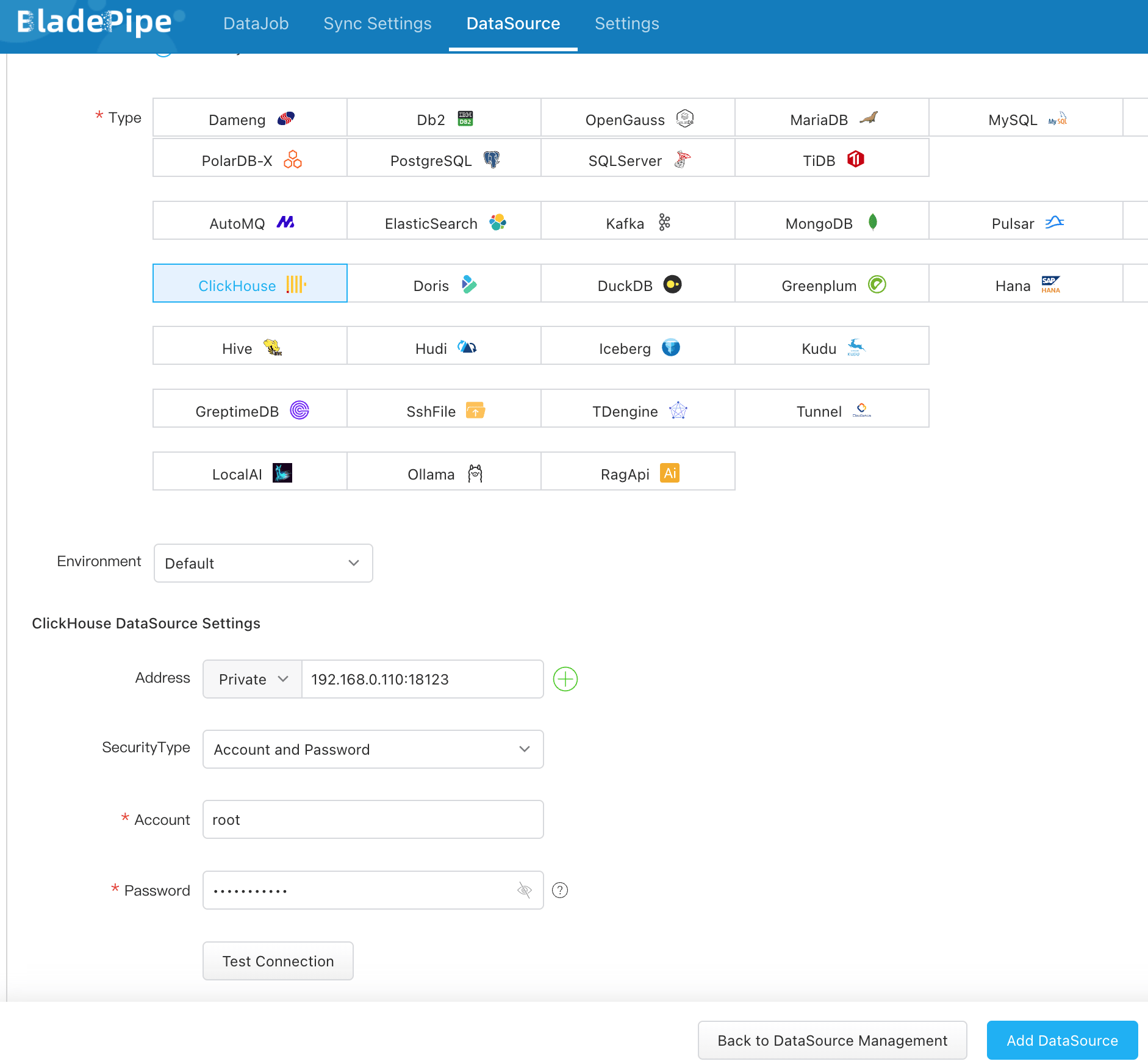
-
Click “Add DataSource” at the bottom, and a ClickHouse instance is added.
Add MySQL as a source
In this tutorial, we use a MySQL instance as the source, and explain the process of loading MySQL data to ClickHouse.
-
In BladePipe, click “DataSource” > “Add DataSource”.
-
Select
MySQL, and fill out the settings by providing your MySQL host and port, username and password, and click “Test Connection”.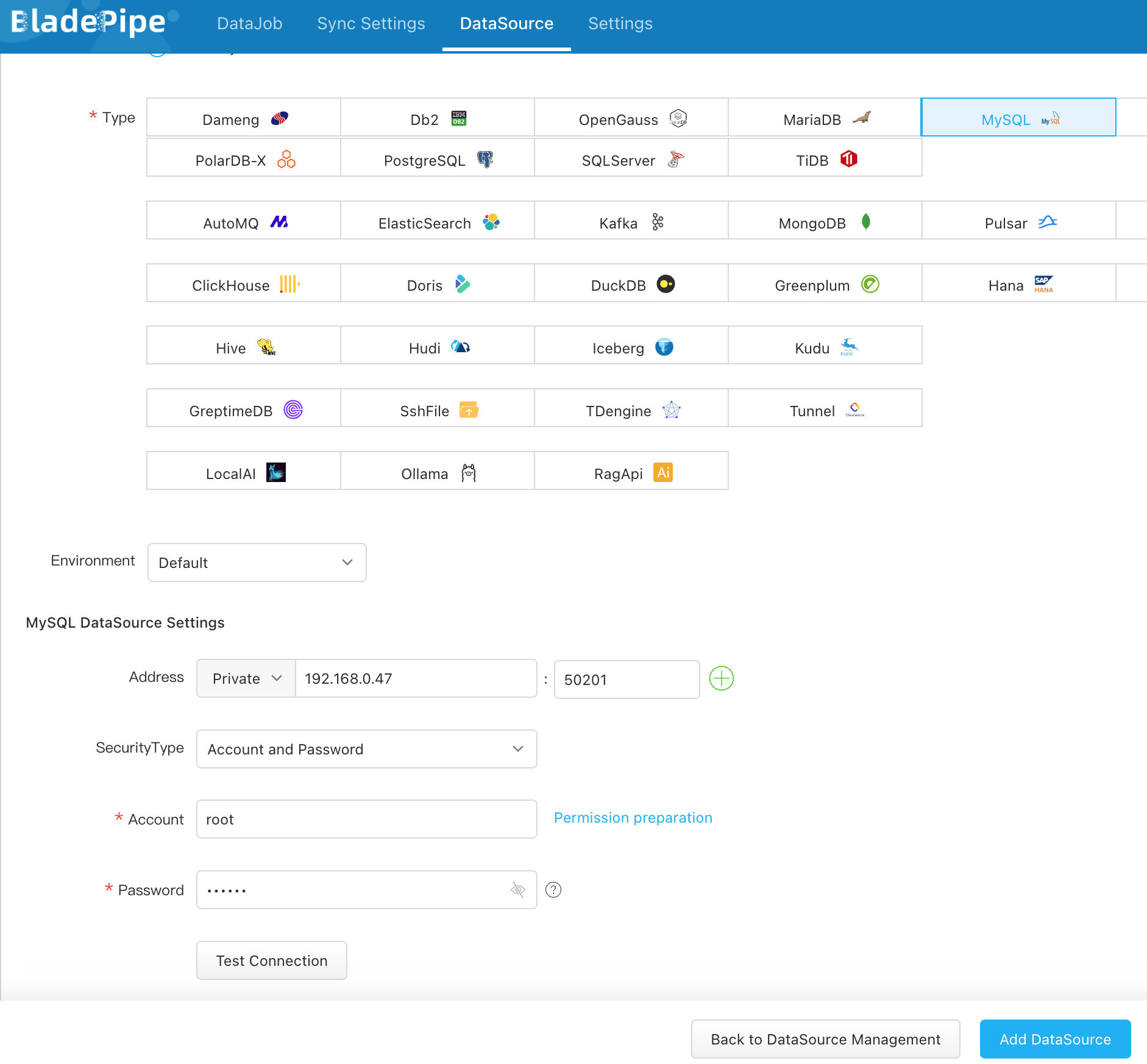
-
Click “Add DataSource” at the bottom, and a MySQL instance is added.
Create a pipeline
-
In BladePipe, click “DataJob” > “Create DataJob”.
-
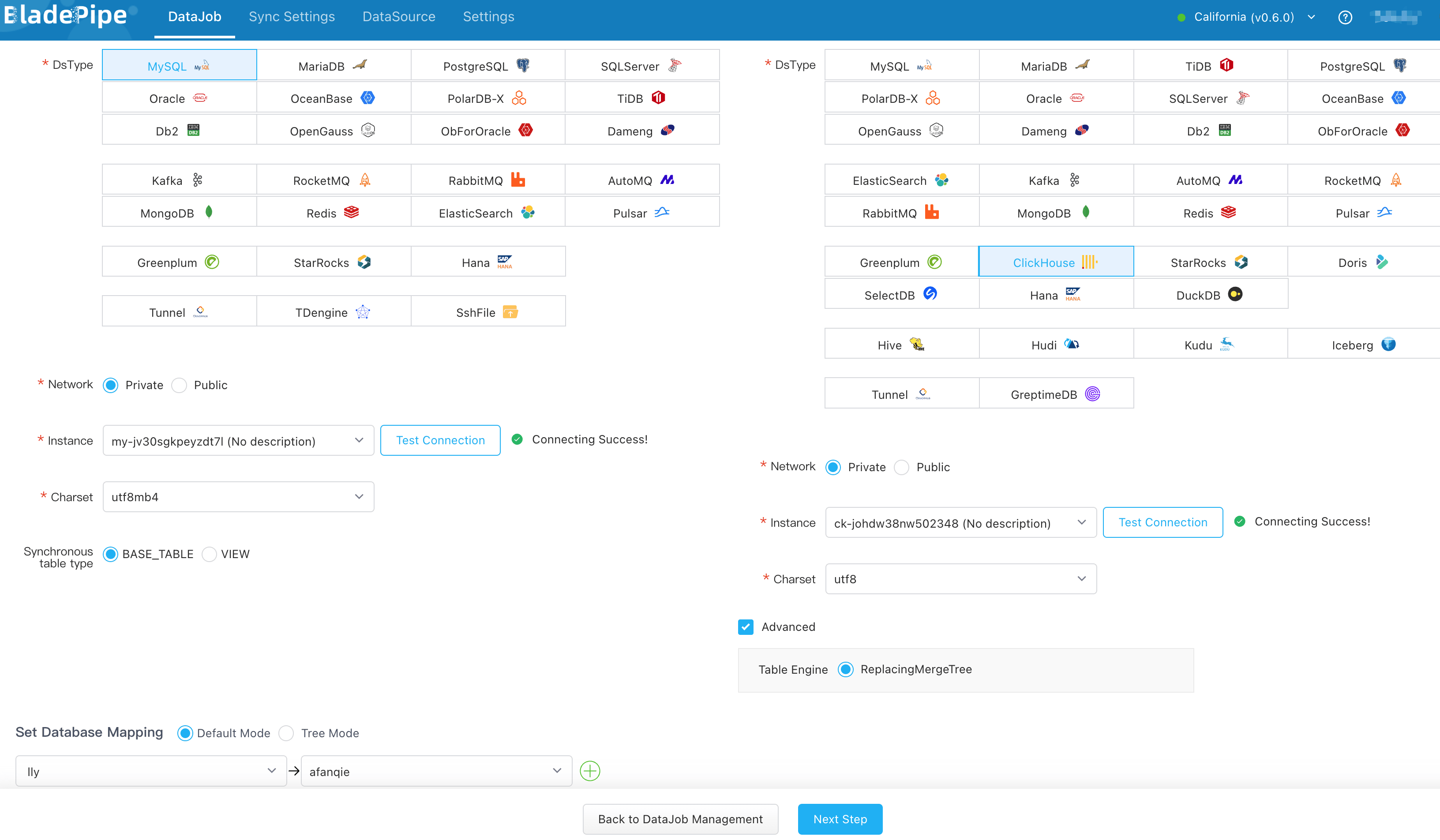
Select the added MySQL and ClickHouse instances and click “Test Connection” to ensure BladePipe is connected to the instances. Then, select the databases to be moved.
-
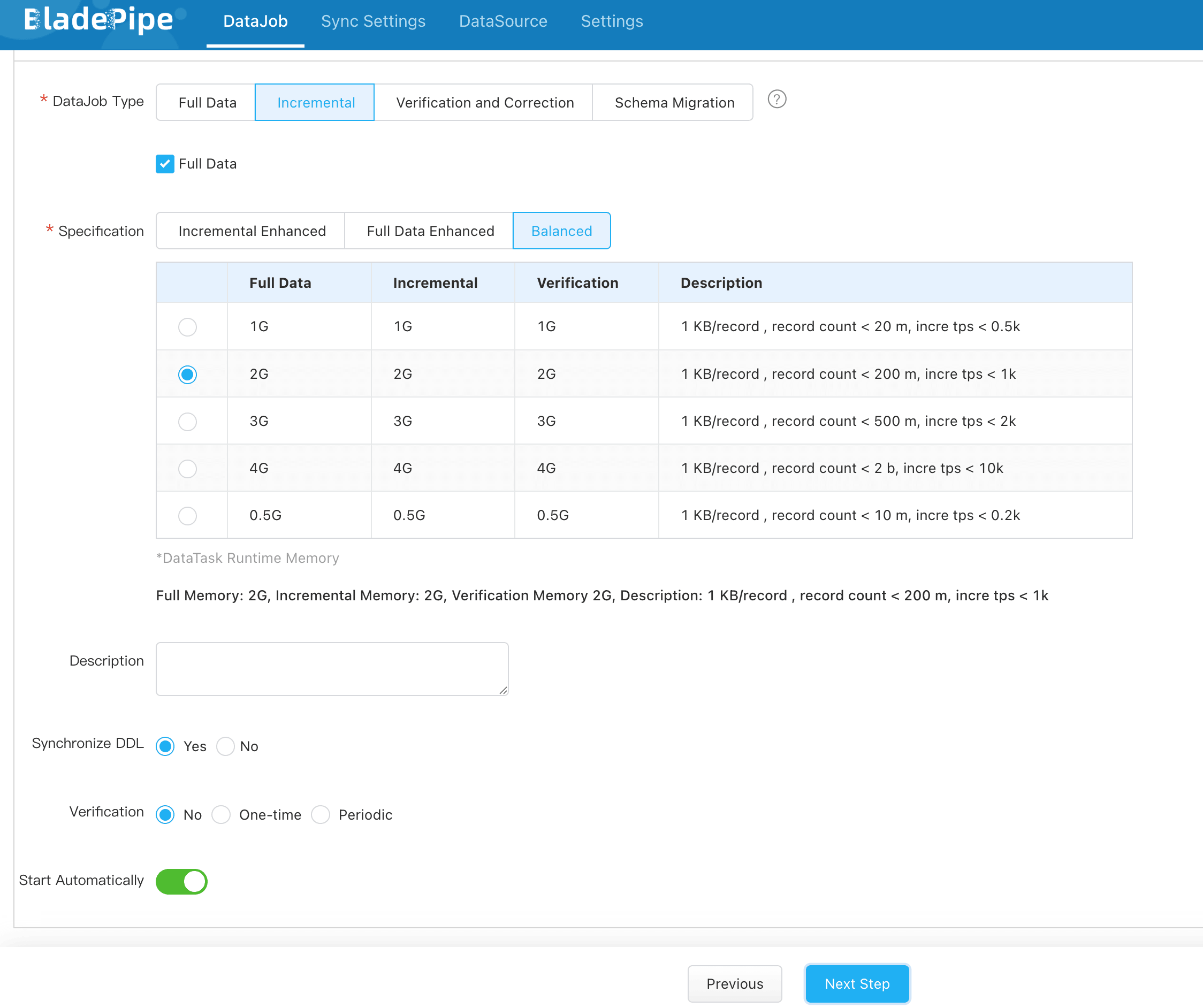
Select “Incremental” for DataJob Type, together with the “Full Data” option.
-
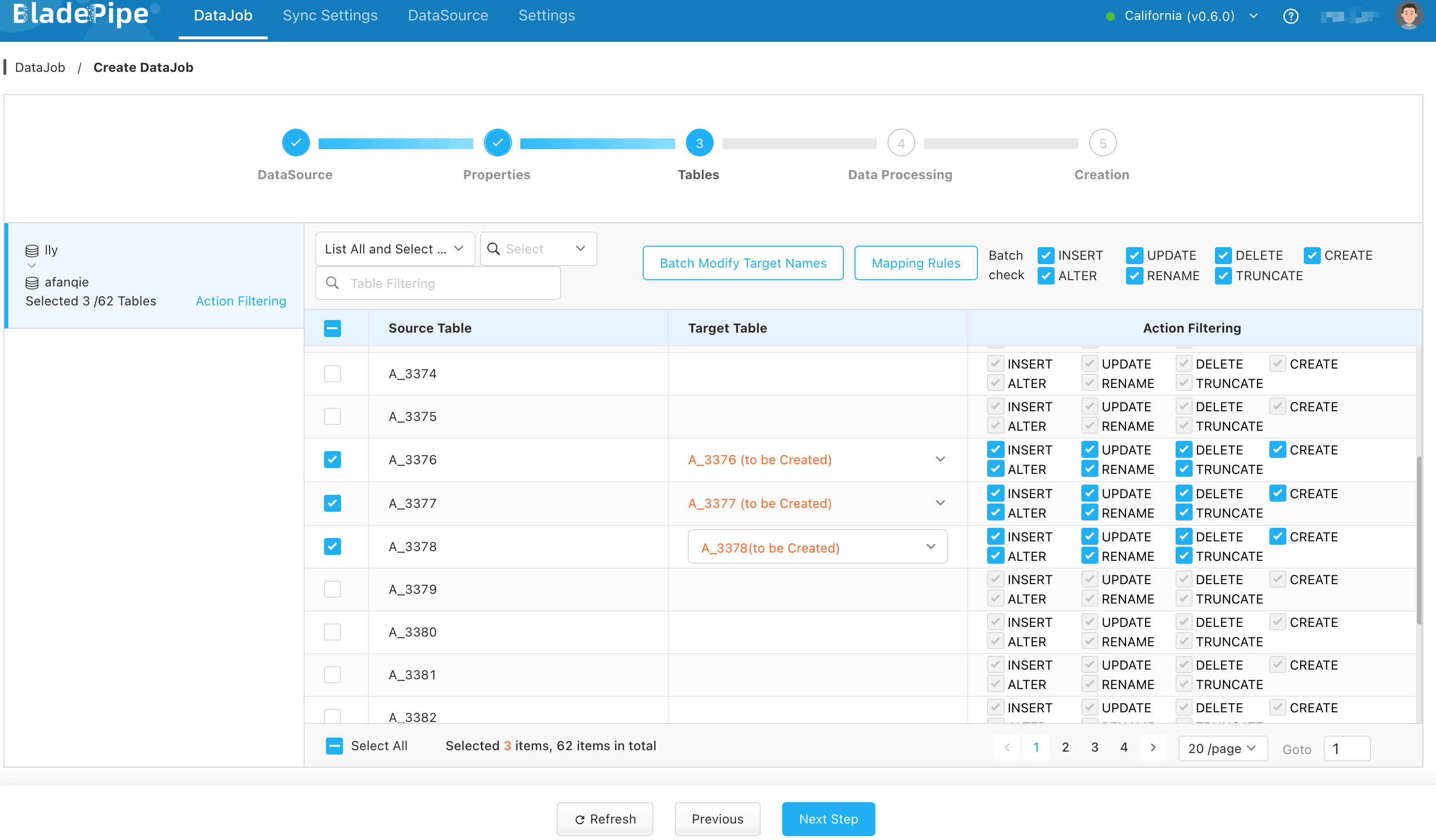
Select the tables to be replicated.
-
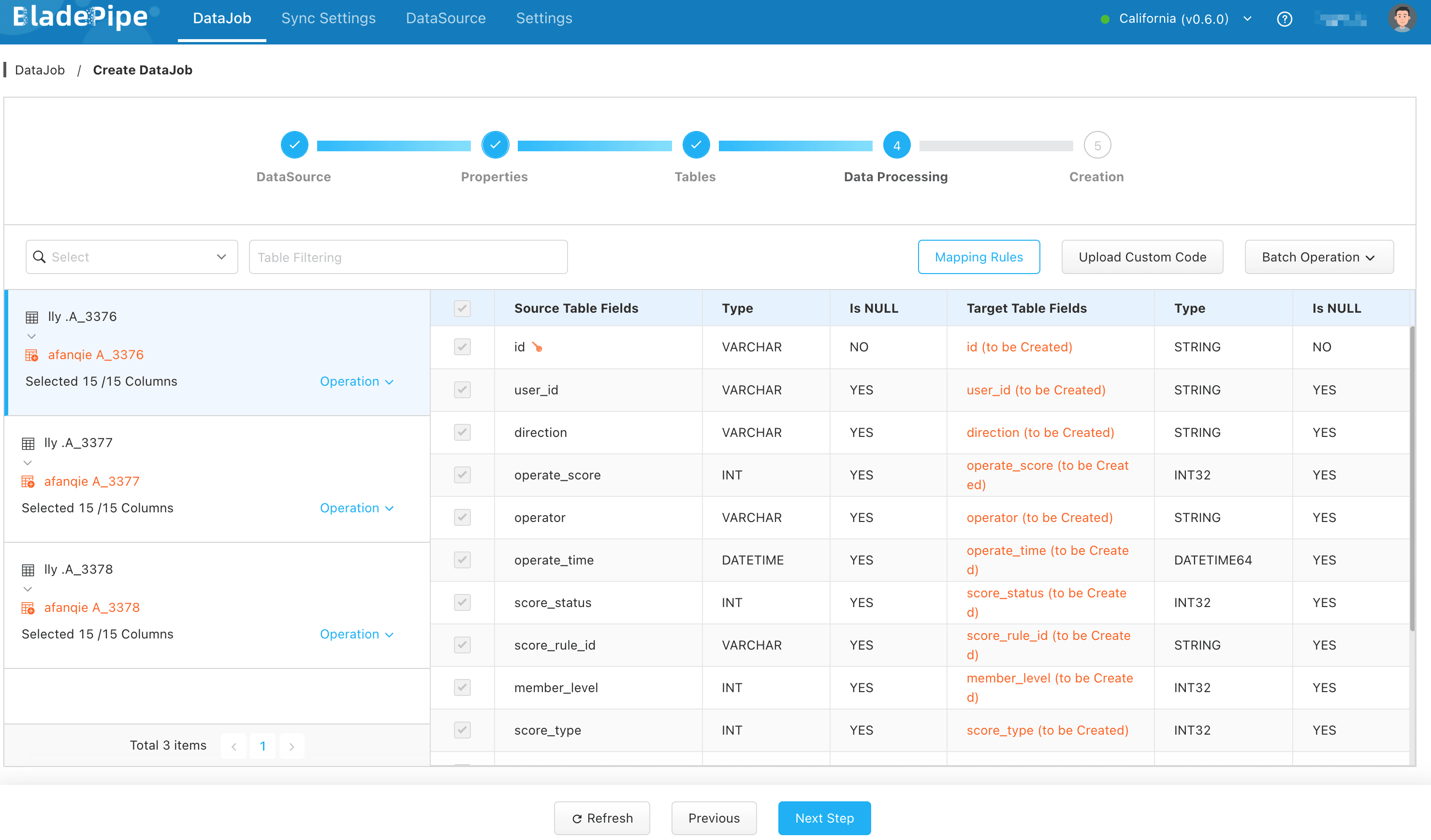
Select the columns to be replicated.
-
Confirm the DataJob creation, and the DataJob runs automatically.

Verify the data
- Stop data write in MySQL instance and wait for ClickHouse to merge data.
- Create a Verification DataJob. Once the Verification DataJob is completed, review the results to confirm that the data in ClickHouse is the same as the data in MySQL.
